 Cuemend
Subtitles out of sync, garbled or in the wrong format? Fix them here.
Cuemend fixes subtitle files in your browser: shift them, sync by two points, convert the frame rate, or let it listen to the video’s audio and find the right timing automatically. It also repairs broken characters (é, ש, ????), fixes Hebrew and Arabic punctuation, and converts between SRT, VTT, ASS, SUB, SBV and TTML. The video is read from your disk – never uploaded.
Open Cuemend – free Pricing ($7 once)
- Runs in your browser, offline – the app page cannot send data anywhere
- Auto-sync reads the audio of MKV, MP4, WebM, MOV, MP3… locally, even multi-GB films
- Every single-file tool is free
What Cuemend does
Automatic sync to the audio
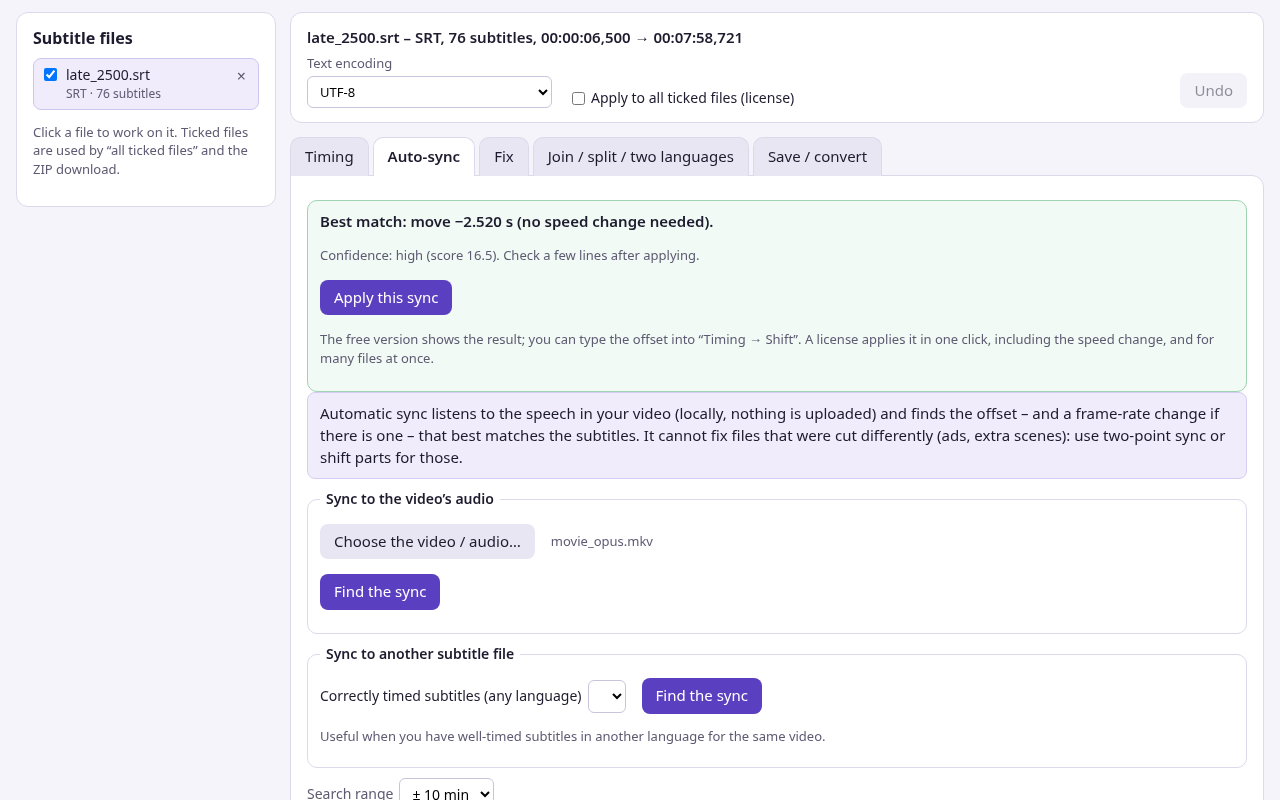
Open the film and the subtitles: Cuemend decodes the audio track with your browser’s own decoder, finds where people speak and matches the subtitles to it – offset and frame-rate change. Or sync to a correctly timed subtitle in another language.
Shift, two points, frame rate
Move everything by ±seconds, from a chosen line onwards, or give two lines their correct times and let the rest stretch in between (fixes drift). Convert 23.976 ↔ 25 ↔ 24 ↔ 29.97 fps.
Fix broken characters
Detects the encoding (Windows-1252, -1250, -1251, -1255 Hebrew, -1256 Arabic, Greek, Turkish, Thai, Chinese, Japanese, Korean…) and repairs double-encoded text like “é” or “שלוה. Saves as UTF-8 or the code page your TV needs.
Right-to-left fixes
Hebrew, Arabic and Persian subtitles with the full stop or question mark on the wrong side: add direction marks, move the punctuation, or remove old marks.
Convert and clean
SRT, WebVTT, ASS/SSA, MicroDVD .sub, SubViewer, YouTube SBV, TTML/DFXP in and out, plus text and CSV. Remove hearing-impaired notes, formatting and empty lines, fix overlaps, set minimum durations, re-wrap long lines.
Join, split, two languages, extract
Join CD1 + CD2, split a file at a time, make two-language subtitles for learning, and extract text subtitle tracks from MKV and MP4 files.
How it works
- Open Cuemend and choose your subtitle file(s) – and, for auto-sync or preview, the video.
- Cuemend detects the format and encoding and shows every line with its times. Click a line to edit it.
- Use Timing, Auto-sync, Fix or Join / split. Every change can be undone.
- Save as SRT, VTT, ASS… in the encoding you need.
Cuemend never changes your original files – you save a new one. The video is only read, in slices, on your device.
Guides
Good to know before you start
- Auto-sync finds one offset plus an optional frame-rate change. If your video has a different cut (extra scenes, removed ads, a recap at the start), no single shift fits – use two-point sync or shift from a given line, part by part.
- Auto-sync shows a confidence level. With a lot of music or very little dialogue it can be wrong; check a few lines with the built-in preview or your player before you keep the result. It has been tested on synthetic test films, not on every kind of real movie.
- Audio is decoded by your browser. AAC, Opus, Vorbis, FLAC, MP3 and PCM work in current Chrome and Edge; AC-3, E-AC-3, DTS and TrueHD usually do not – then use another audio track or a version with AAC audio. Fragmented MP4, MPEG-TS (.ts) and Ogg files are not supported for auto-sync.
- Picture-based subtitles (Blu-ray .sup / PGS, DVD .idx/.sub VobSub) need OCR and are not supported – only text subtitles. Cuemend does not translate or transcribe speech.
- Encoding detection is a well-informed guess for files without a marker; if letters still look wrong, pick the encoding by hand.
- Free tools such as Subtitle Edit (Windows) or your player’s subtitle delay setting can do many of these jobs too. Cuemend is for doing it in a browser window, on any computer, without installing anything or uploading the film.
Questions and answers
Is my video uploaded anywhere?
No. Cuemend runs in your browser. The app page has a Content Security Policy that blocks all network connections, and it keeps working with Wi-Fi off once loaded. See the privacy page.
What does the free version do?
Everything on one file at a time: shift, two-point sync, frame rate, encoding repair, right-to-left fixes, clean-up, join / split, conversion and track extraction. Auto-sync also runs and shows the offset it found. A one-time $7 license applies auto-sync in one click (with the speed change), processes many files at once with a ZIP download, and makes two-language subtitles.
Which browsers work?
Current Chrome and Edge on Windows, macOS, Linux and ChromeOS support everything. Firefox and Safari work for all subtitle tools; auto-sync needs WebCodecs audio decoding, which recent versions are adding – Cuemend tells you if your browser can’t decode a track.
Does it work on my phone?
The subtitle tools do. Auto-sync on a phone works with small files, but a full film is best done on a computer.
Is Cuemend made by VLC or Netflix?
No. Cuemend is an independent tool and is not affiliated with VideoLAN, Netflix, Google or any streaming service. It cannot change subtitles inside streaming apps – only subtitle files you have.